MCP Tools
Overview
The AI Service can act as an MCP Server. Using this approach, the AI Service exposes MCP Tools and enables external MCP clients such as Claude and GitHub Copilot to make direct AI Service API calls.
There are two main categories of MCP Tools:
| Type | _type value | Description |
|---|---|---|
| System MCP Tools | system_mcp_tool | Auto-generated from READ APIs, available to all users |
| Custom MCP Tools | user_mcp_tool | Developer-defined, backed by an Item Service script |
This page describes the main features of both tools and how to set them up.
System MCP Tools
All READ APIs in @dtplatform/platformapi are automatically exposed as MCP Tools, identified by _type: system_mcp_tool.
These Tools are available to all users out of the box.
Examples of system MCP Tools include:
getFiles_IafFileSvc— Gets files in the File ServicegetNamedUserItems_IafItemSvc— Gets NamedUserItems from Item ServicegetProjects_IafProj— Gets all projects
Custom MCP Tools
Custom MCP Tools are tools which are created by application developers using the Javascript API call:
IafAISvc.createMcpTools(mcpTools, ctx);
Application developers can expose their own MCP Tools, backed by scripts in the Item Service. They are identified by the _type property being set to user_mcp_tool.
When invoked, the AI Service executes the referenced Item Service script via the ScriptWorker.
How to create a custom MCP tool
To create a custom MCP tool using the REST API, do the following:
Step 1: Create a script
Firstly, to create a script in the Item Service (if one doesn't already exist), refer to the example below.
async function getFiles(input, libraries, ctx, callback) {
  const { PlatformApi } = libraries;
  const { searchText, regEx } = input;

  const query = {
    _name: regEx ? searchText : `.*${searchText}.*`
  };

  const response = await PlatformApi.IafFileSvc.getFiles(query, ctx);

  return response;
}
Step 2: Define the MCP Tool
Define the input schema matching the script's parameters, and reference the script name and function name. The example searchText and regEx in Step 1 are input parameters.
[{
  "_name": "CustomGetFilesTool",
  "_description": "",
  "_namespaces": [
    "xxx_LqxQizpz"
  ],
  "_schema": {
    "type": "object",
    "required": [
      "searchText"
    ],
    "properties": {
      "regEx": {
        "type": "boolean",
        "description": "Set to true when searchText is a regular expression. If false or not provided, searchText is treated as plain text."
      },
      "searchText": {
        "type": "string",
        "description": "Text to search for in the file name. By default, performs a partial name match."
      }
    },
    "additionalProperties": false
  },
  "_script": {
    "_userType": "CustomGetFilesTools",
    "_scriptName": "getFiles"
  }
}]
Step 3: Register the Tool
Register the Tool using the API call below.
IafAISvc.createMcpTools(mcpTools, ctx);
The MCP Tool is now available to MCP clients.
Note: Some clients may require a disconnect or reconnect before the new Tool appears.
Testing MCP Tools
You can test MCP Tools using the Postman utility.
Do the following:
-
In Postman, select File -> New -> MCP.
-
Choose HTTP as the transport.
-
Provide the MCP Server URL as shown below (use the respective environment URL and namespace):
{{apiUrl}}/aisvc/api/v1/stateless/mcp/tools?nsfilter={{nsfilter}} -
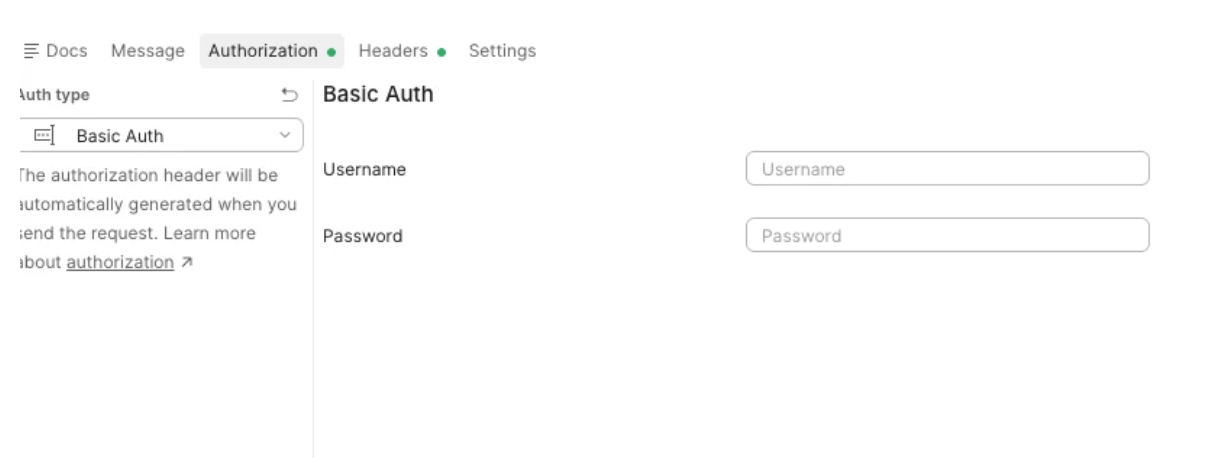
In Postman, go the Authorization section. Select Basic Auth and configure it by retrieving the API keys from the Passport Service account settings page. Alternatively, use the Bearer token used by the web application.
- Click Connect. The MCP tools will be listed.
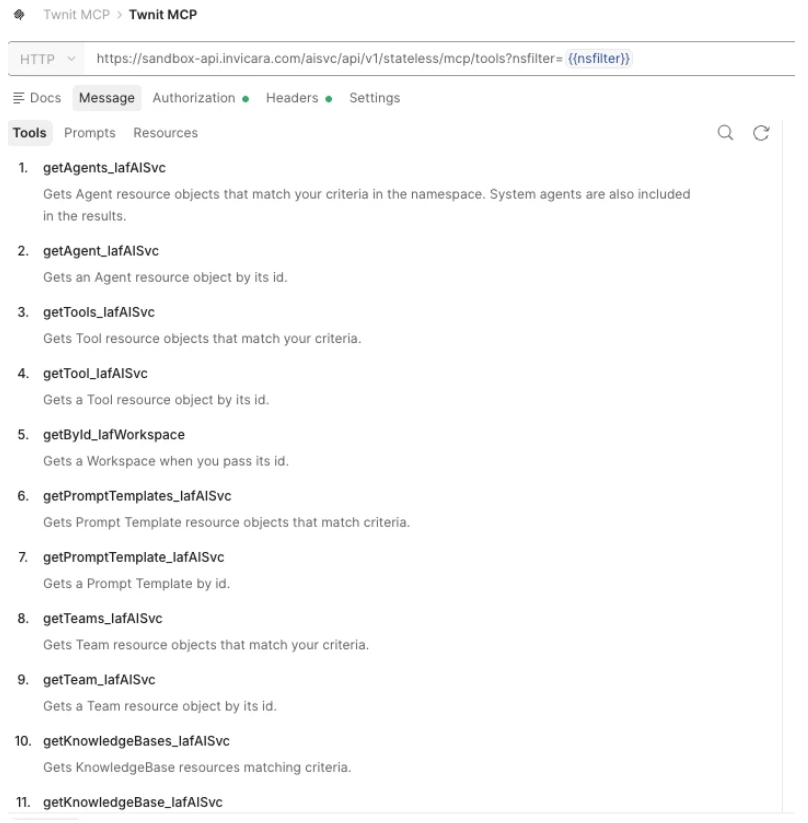
- To test any particular Tool, do a search for it and then run it.
Using MCP Tools in Platform Agents
Introduced in Platform version 5.2, agents can now use MCP Tools directly by listing their names in the agents' _tools array. No separate MCP server configuration is required.
Mixing normal and MCP Tools
The _tools array can now mix normal (system or script) Tools and MCP Tools freely. During agent or team execution, the AI Service resolves every name and binds the name to the matching Tool. This simplifies agent configuration and improves usability through direct Tool-level integration.
Note: Tool names are kept unique across both the Tool and MCP Tool registries (within overlapping or global namespaces) by a database trigger. This means that a name listed in the
_toolsarray always resolves to exactly one Tool.
How it works
This new approach for using Custom and System MCP Tools works as follows:
- An agent lists Tool names directly in the
_toolsarray. Normal Tools and MCP tools can be listed together. - When the Team is run, the AI Service collects the requested names and looks them up in the Tool and MCP Tool registries. The AI Service then binds each name to the agent (System and User and Custom MCP tools are all supported).
- An entry is not required in
_externalMcpServersfor MCP tools which are referenced in this way.
Sample agent configuration
No MCP Server configuration is required. You can now simply list MCP Tools directly in the _tools array as shown below.
{
  "_name": "Platform Ops Agent",
  "_userType": "platform_ops_agent",
  "_type": "user_agent",
  "_namespaces": ["building_1234"],
  "_config": { "_provider": "openai", "_model": "gpt-4o", "_temperature": 0 },
  "_background": "Answer questions across files, items, projects and workflows.",
  "_tools": [
    "GetAssetsTool",                 // normal / system tool
    "getFiles_IafFileSvc",           // MCP tool
    "getFileVersions_IafFileSvc",    // MCP tool
    "getNamedUserItems_IafItemSvc",  // MCP tool
    "getProjects_IafProj",           // MCP tool
    "getWorkflows_IafWorkflowSvc"    // MCP tool
  ]
}
Note:
GetAssetsToolis a normal Tool. The*_Iaf*entries are MCP Tools served by the AISvc MCP Server. All are referenced by name with no_externalMcpServersentry.
Notes on uniqueness of Tool names
A Tool name must be unique across both the Tool registry and the MCP Tool registry within overlapping global namespaces. This ensures that _tools references are never ambiguous. This is enforced by a database trigger and surfaced as a clear HTTP error on both creation paths.
Notes on creating a normal Tool
If you attempt to create a normal Tool whose user_type, name, or tool_class conflicts with an existing MCP Tool name then you will get a 409 Conflict.
POST {{url}}/aisvc/api/v1/tools?_pageSize=100&nsfilter={{namespace}}
Notes on creating a MCP Tool
If you attempt to create a MCP Tool whose name collides with an existing Tool's user_type, name, or tool_class then you will also get a 409 Conflict.
POST {{url}}/aisvc/api/v1/mcp-tools?nsfilter={{namespace}}
Notes on acceptance criteria
Note the following acceptance criteria:
- Agents can reference and use Custom MCP Tools directly without defining the Twinit MCP Server.
- The system returns a 400 Bad Request error when an invalid Custom MCP Tool is provided or when the referenced Tool does not exist.
- Custom MCP Tools are supported during Team execution workflows.
- Existing MCP Server-based integrations continue to work without regression.
- Proper validation and error messaging are displayed for unsupported or unauthorized Tool usage.
_toolscan contain both normal Tools and MCP Tools in the same array; all are resolved, bound, and execute correctly.- Creating a normal Tool with a
user_type,name, ortool_classthat duplicates an existing Tool or MCP Tool (overlapping namespaces) results in a 409 error (422 error for same-namespace duplicate) with a clear message; "The tool is not created." - Creating an MCP Tool with a name that duplicates an existing MCP Tool or a Tool's
user_type,name, ortool_classresults in a 409 error (422 error for same-namespace duplicate) with a clear message; "The MCP tool is not created." - Because duplicates are blocked at creation, a
_toolsreference resolves to exactly one tool. If a duplicate or ambiguous definition is present, the agent run will fail with a clear error rather than binding the wrong tool. - The caller must have the required permission on every tool which the agent references. This includes both normal Tools and MCP Tools. If permission for any referenced tool is missing, the request will fail and provide a clear authorization error (403) rather than silently skipping the Tool.