Workspaces tab
Overview
Use the Workspaces tab to view a list of an application's workspaces. Click a workspace to view more details about it and with the appropriate permissions, complete the following tasks:
- Create a workspace
- Edit a workspace's details
- Delete a workspace
- Add, edit or remove workspace permissions for other users
Note: Since Console App 3.4, you can now search for workspaces using partial names. This offers an easy way to filter the listing of workspaces and narrow your searches.
Figure: Workspaces tab elements
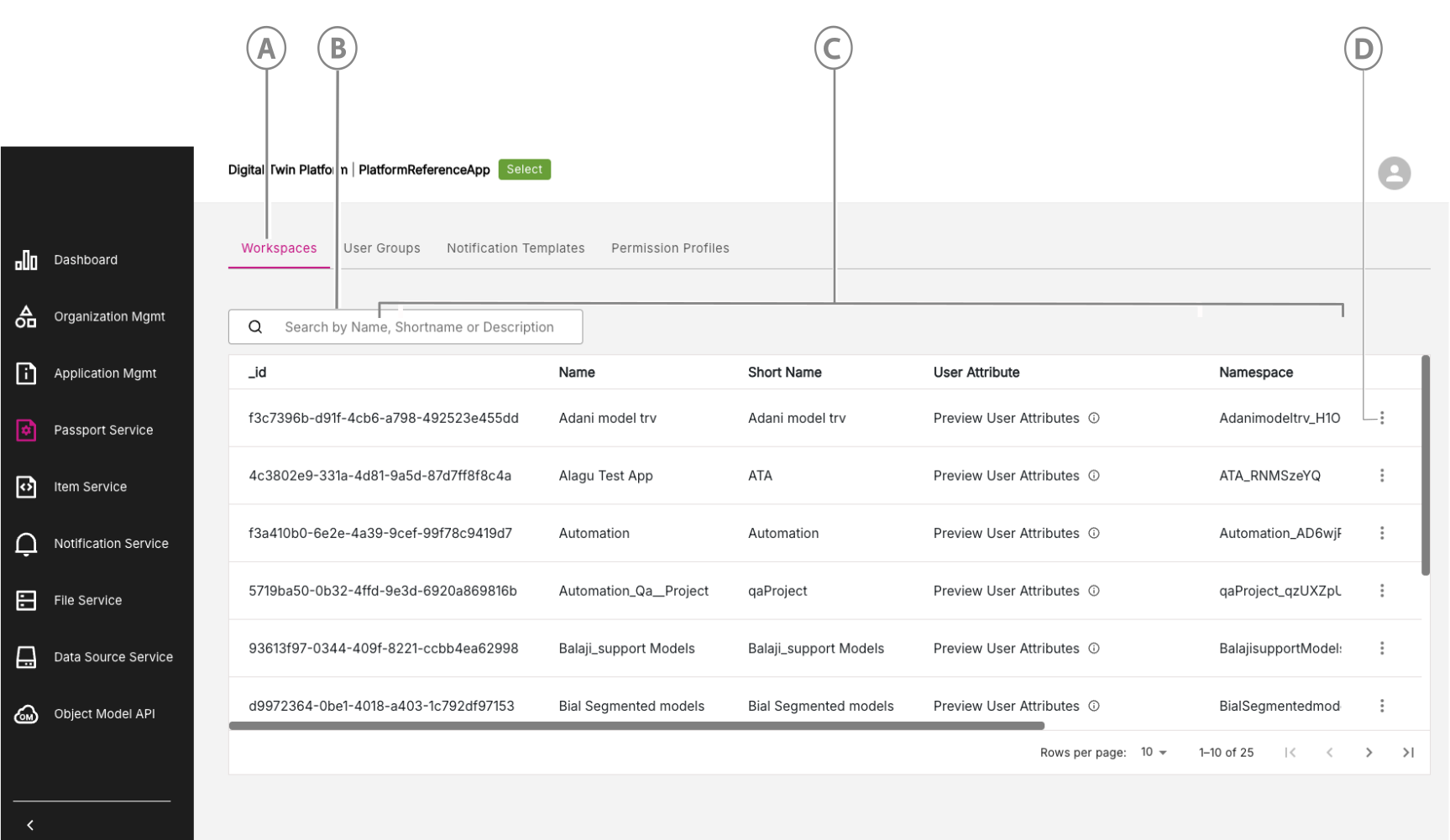
| Callout | Name | Description |
|---|---|---|
| A | Workspaces tab | Click to open the Workspaces tab. |
| B | Search workspaces | Search workspaces by name, ID, and more. You can now search using a partial name. For example, search for anyone with "developer" in their name by simply entering "dev" in the search bar. |
| C | Workspaces list | View the list of workspaces you can access. |
| D | Three-dot menu icon | Click to access other options where you can view, edit, or delete a workspace from the workspaces list, depending on your permissions. |
Managing Workspaces
The main actions you can perform on workspaces are:
- View a workspace
- Edit a workspace
- Delete a workspace
View a workspace
To view a workspace, do the following:
-
For the workspace, you are interested in, click the three-dot menu at the end of the row. Click the View option.
-
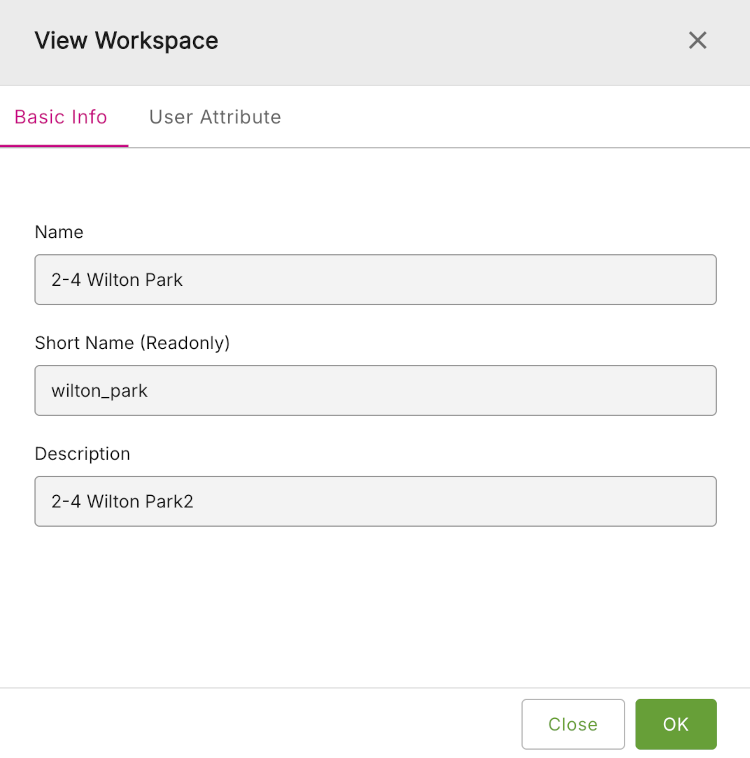
You will be initially presented with a window showing the ** Basic Info** tab for the workspace. There are two tabs of information available: Basic Info and User Attribute.
Figure: View Workspace - Basic Info tab
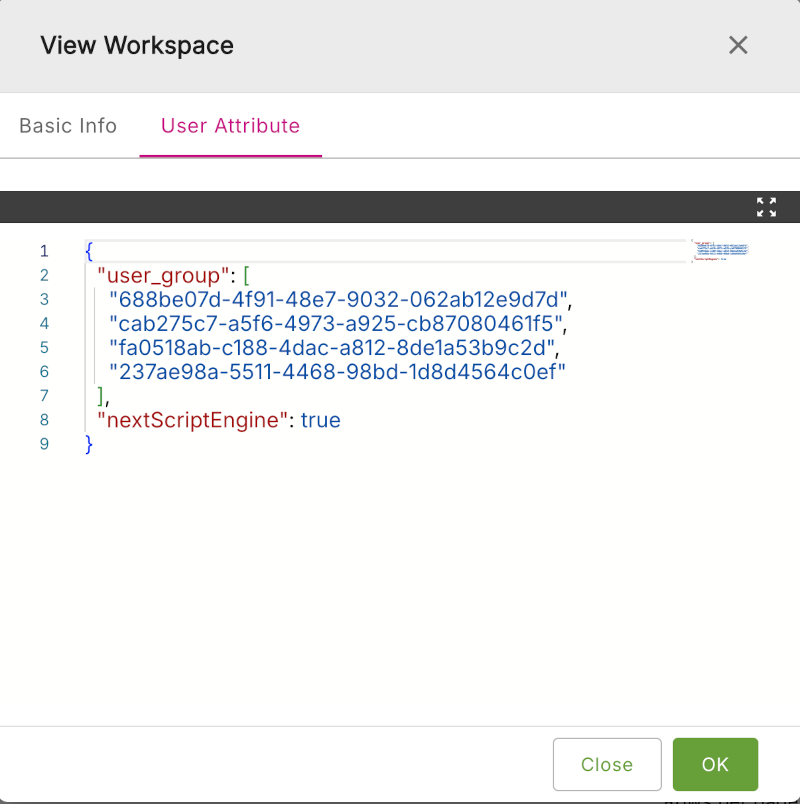
- Click the User Attribute tab to display detailed user attributres for that workspace.
Figure: View Workspace - User Attribute tab
Edit a workspace
To edit a workspace, do the following:
-
For the workspace, you are interested in, click the three-dot menu at the end of the row. Click the Edit option.
-
You will be initially presented with a window showing the ** Basic Info** tab for the workspace. There are two tabs of information available: Basic Info and User Attribute. Edit the details on each tab as required.
-
When done, click Save & Close.
Delete a workspace
To delete a workspace, do the following:
-
For the workspace, you are interested in, click the three-dot menu at the end of the row. Click the Delete option.
-
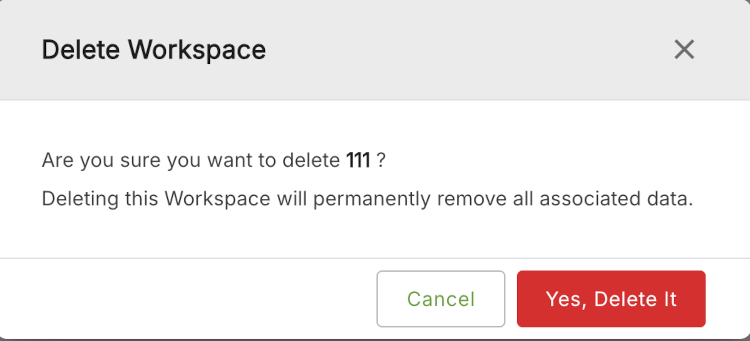
You will be presented with the Delete Workspace window. You will asked if you are sure that you want to delete this workspace.
-
If you stil want to delete it, then click Yes, Delete It.
Figure: Delete Workspace