Opening the plug-in in AutoCAD
Overview
From Platform version 4.5, the AutoCAD plug-in is now called IPA ACAD and that is how it appears in the Add-ins tab of the AutoCAD menu ribbon at the top of the AutoCAD user interface.
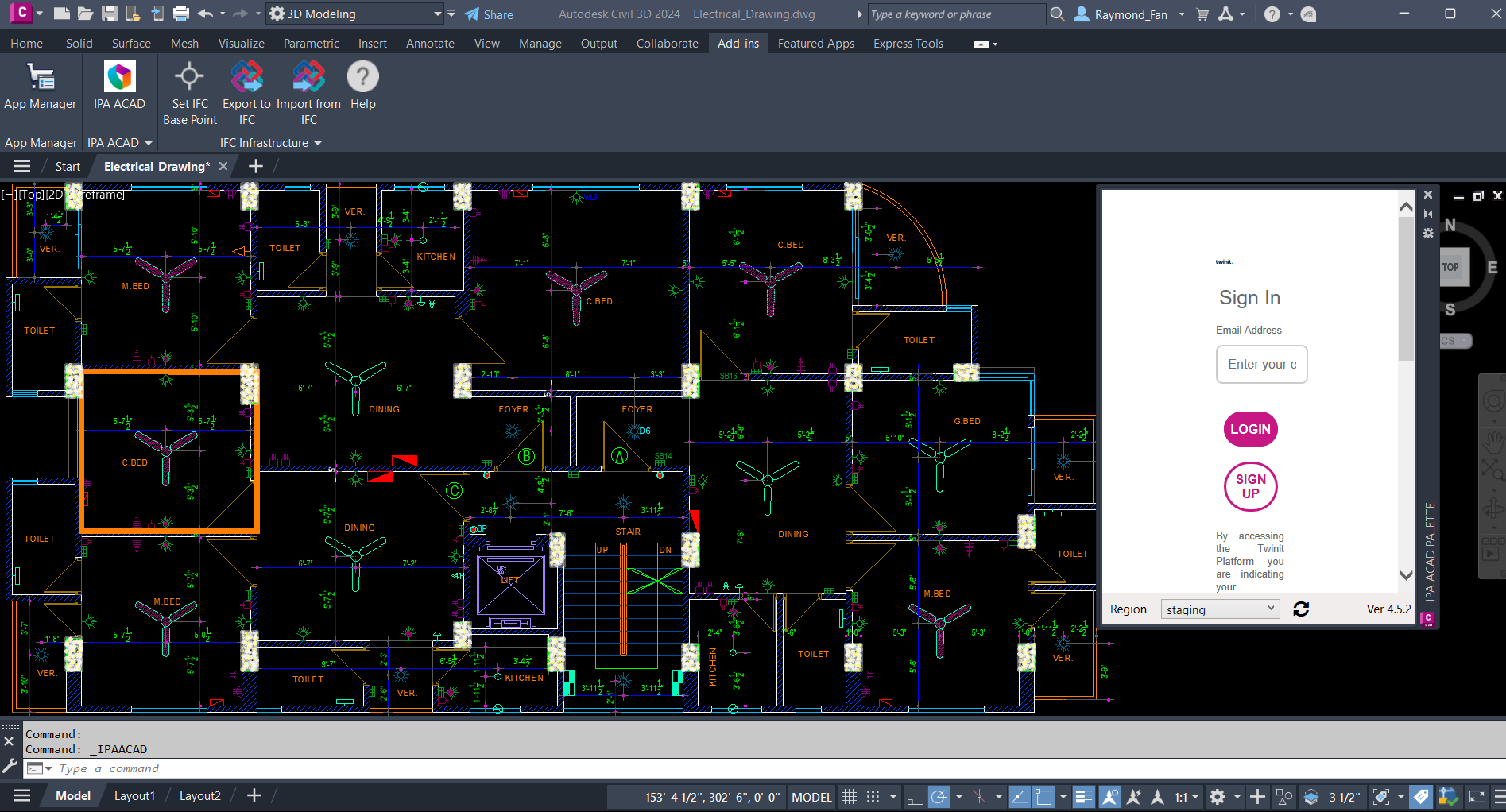
How to open the IPA ACAD plug-in
To open the IPA ACAD plug-in in AutoCAD, do the following.
- Launch the AutoCAD application.
- In the AutoCAD application, in the top menu ribbon, on the Add-ins tab, verify that the IPA ACAD plug-in appears in the AutoCAD ribbon. You can also launch the plug-in by entering the command:
IPAACAD

-
From the ribbon, click IPA ACAD.
Note: For ease of use, you can dock the window to a pane, or undock it and float the plug-in window on your screen and resize it.
-
Now you can sign into the plug-in. In the plug-in Sign In window, at the bottom of the window, from the Region dropdown, select your region.
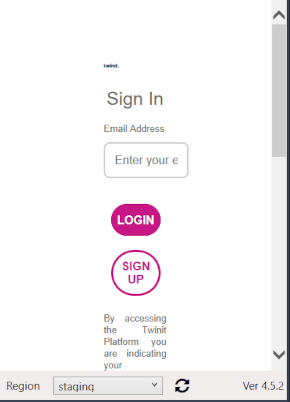
- In the Email Address and Password fields, enter your email address and password.
- Click LOGIN. To save your login credentials, in the dialog box that appears, click Yes. If a login attempt fails, the session may have expired. Click the Refresh icon to refresh the page.
Further information
For more information, see Plug-in main interface.