Corridor
Corridor
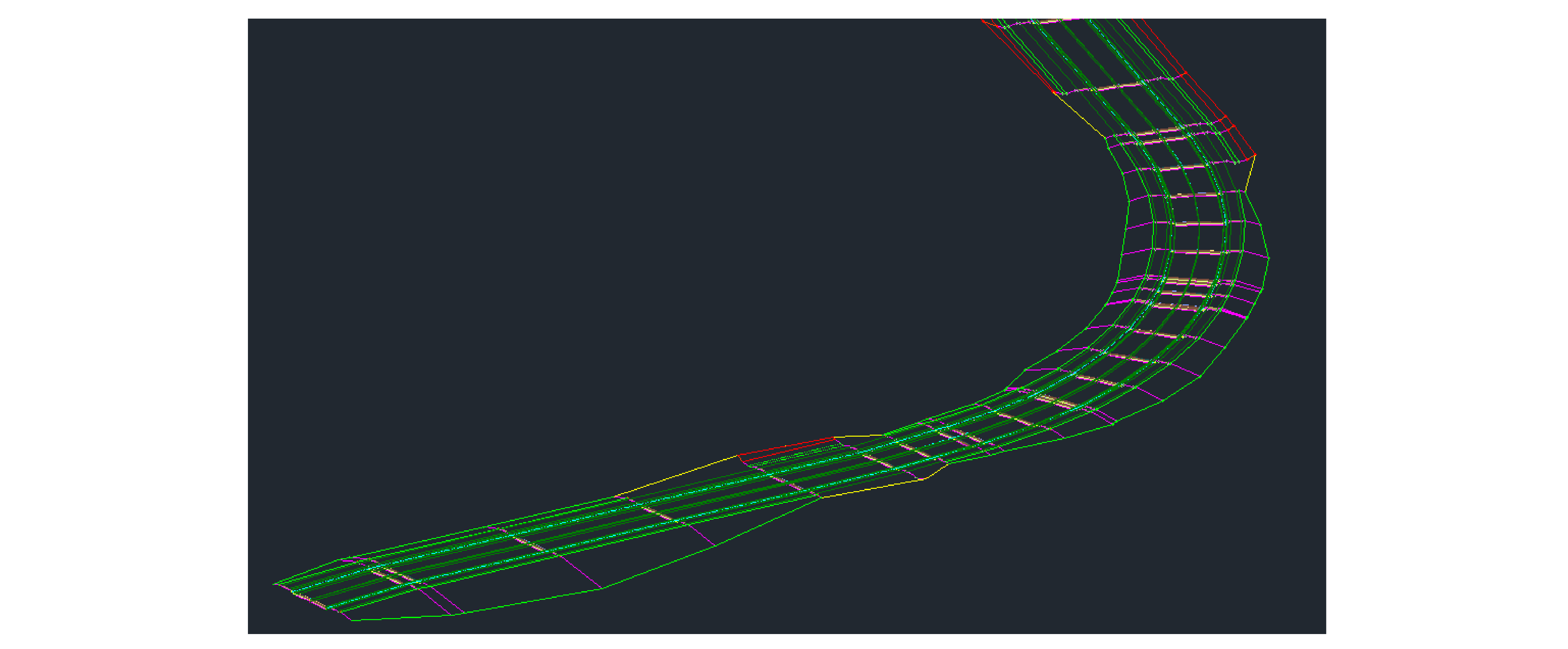
The plug-in explodes a corridor to get primitive geometry entities like Lines and Hatches, and then export them to a HOOPs file.
Figure: Corridor geometry composed of curves and hatches
By default, a corridor has no 3D Solid geometry; you must complete the following steps to export it correctly:
-
On the Corridor tab, in the ribbon, click the Extract Corridor Solids icon.
Figure: Extract Corridor Solids icon

Callout Description A Extract Corridor Solids icon B Corridor tab -
In the Extract Corridor Solids window, from the Sidebar, click Property Data.
Figure: 3D solids generated for corridor

-
In the Corridor property set definitions area, expand Property Set Definitions, then click Corridor Model Information.
-
In the table, find the CorridorName setting and in the Visible column, select the checkbox.
Figure: CorridorName property in Extract Corridor Solids
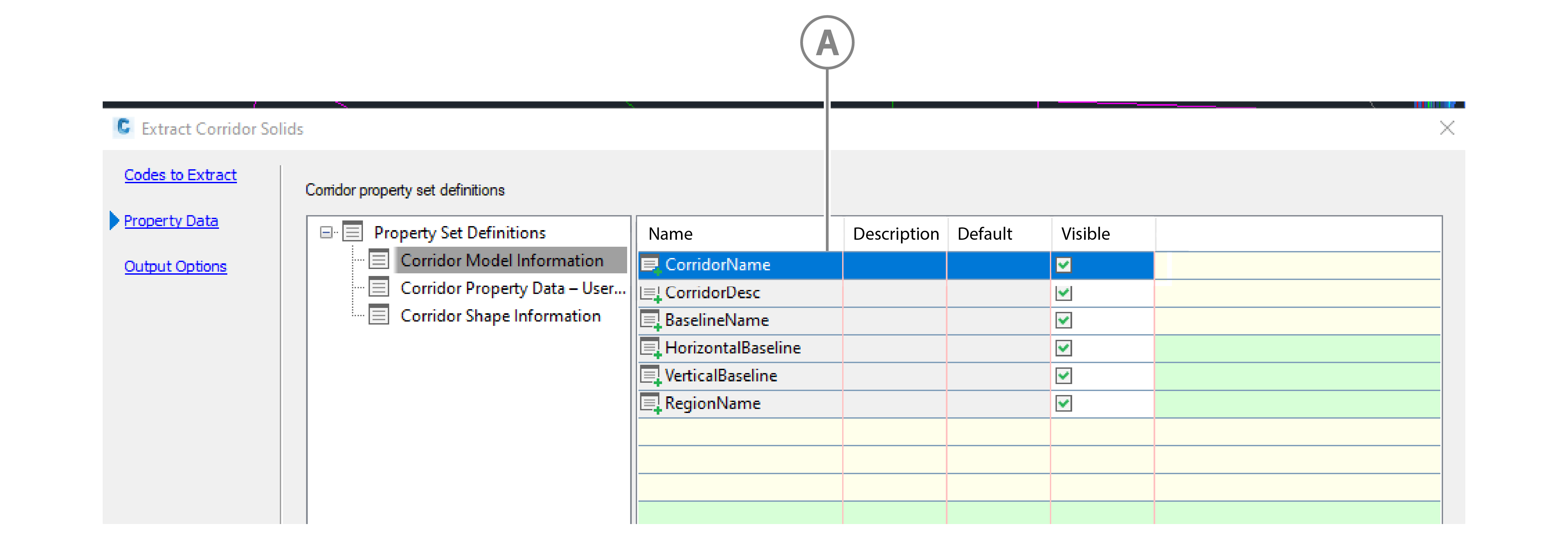
Callout Description A CorridorName property and checkbox -
From the sidebar, click Output Options, in the Output definition options area, select Insert into current drawing.
Figure: Insert into current drawing option in the Output destination options
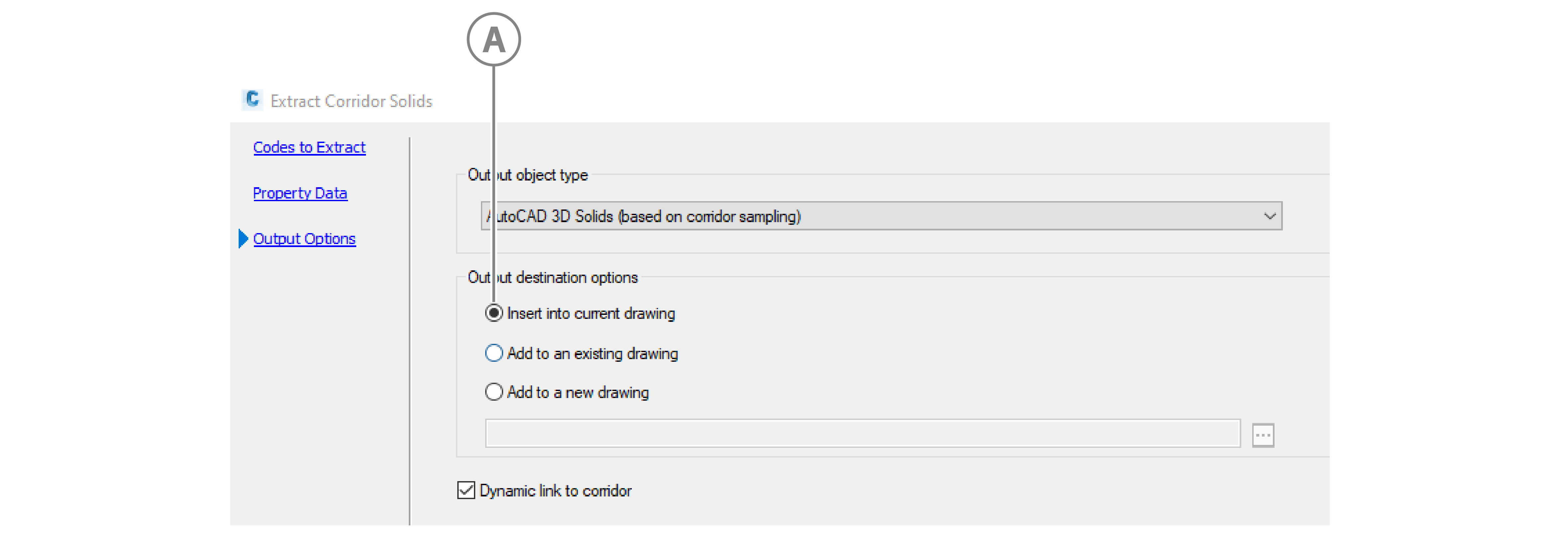
Callout Description A Insert into current drawing option
Other than basic properties, plugin exports following properties for Corridor:
- Data : Code Set Style
- Parameters : Baseline - Name
- Parameters : Baseline - Alignment
- Parameters : Baseline - Region - Assembly
- Parameters : Baseline - Region - Start Station
- Parameters : Baseline - Region - End Station
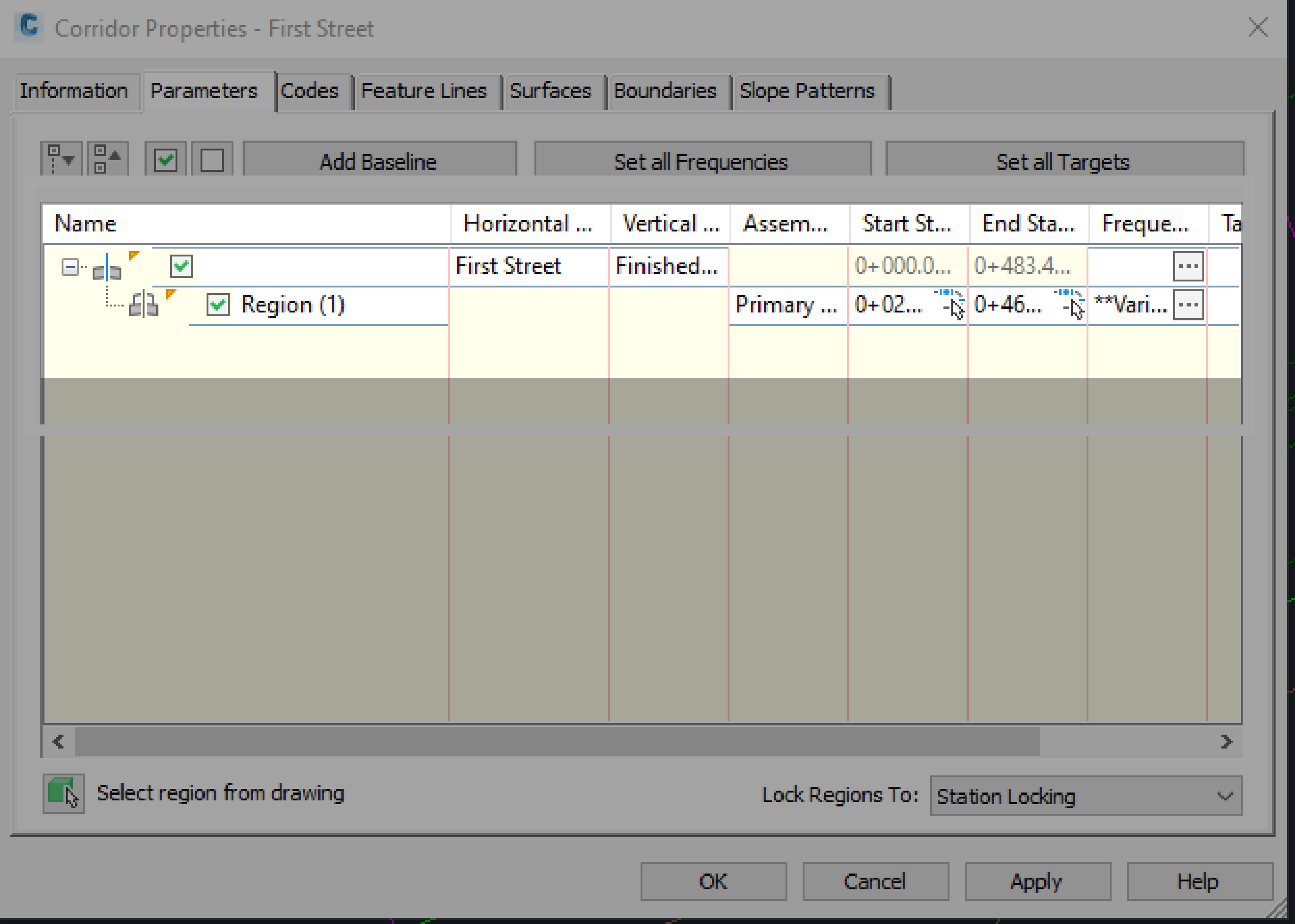
Figure: Corridor properties parameters tab