Opening the plug-in in IfcXplorer
-
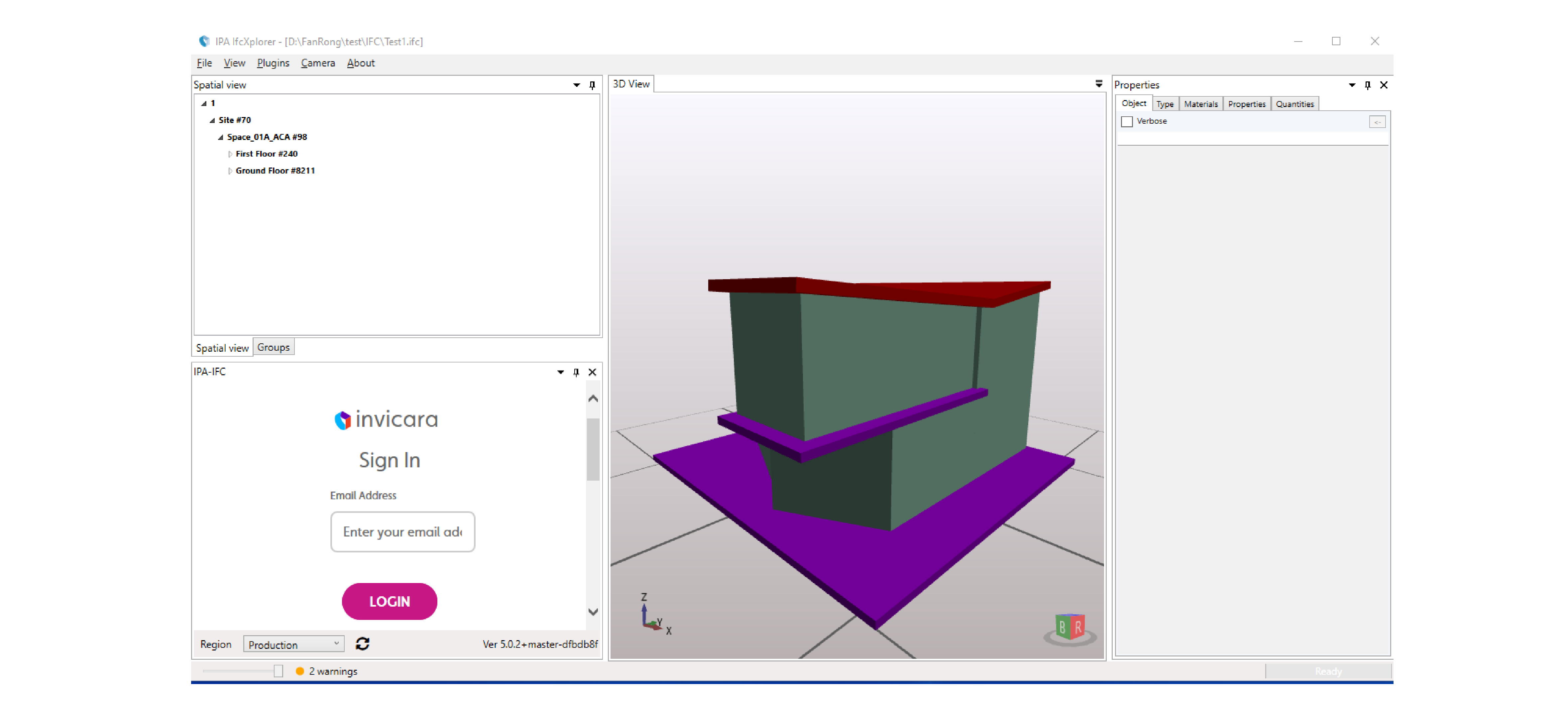
Launch your IfcXplorer application. By default, IPA-IFC plug-in launches when IfcXplorer launches.
Figure: IfcXplorer user interface with docked IPA plug-in
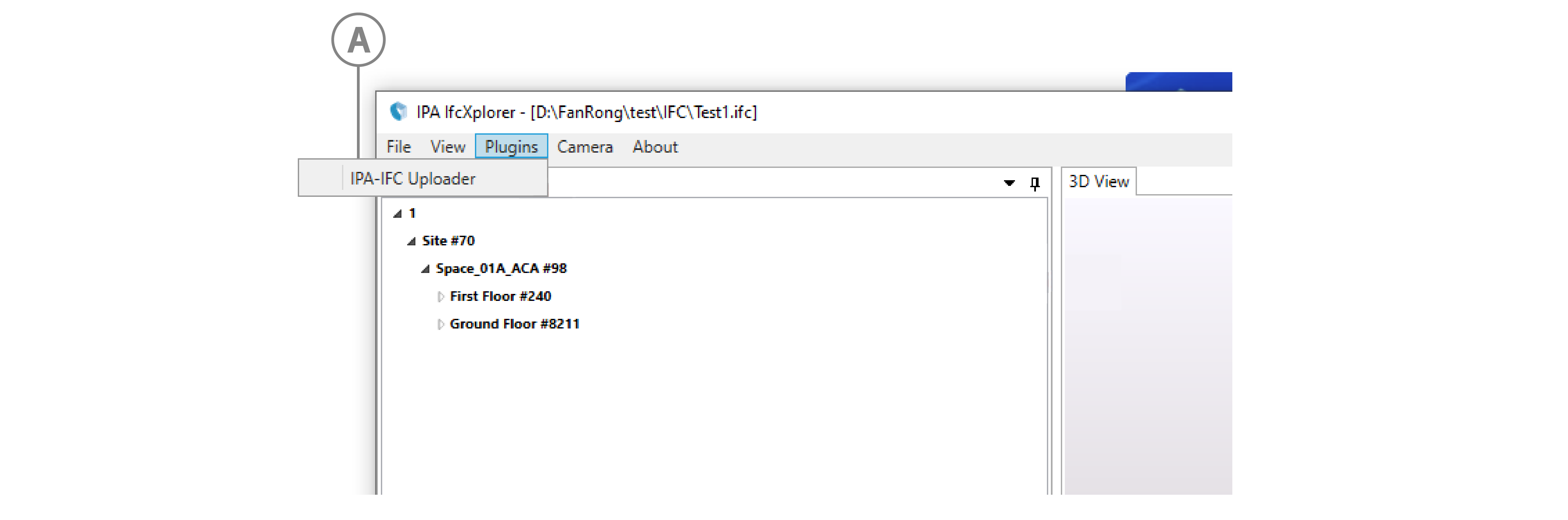
If the plug-in does not launch, from the menu bar, click Plugins, then click IPA-IFC Uploader.
Figure: IfcXplorer with IPA plug-in
If this fails, go to , open PluginConfig.xml and replace the contents of the OnStartup tags with Enabled. For more information, see the following code example:
<?xml version="1.0" encoding="utf-8"?><PluginConfiguration><OnStartup>Enabled</OnStartup> //edit the contents of this tag</PluginConfiguration> -
Optional: You can dock the window to a pane, or undock it and float the plug-in window on your screen and resize it.
-
In the plug-in window, at the bottom of the window, from the Region dropdown, select your region.
-
In the Email Address and Password fields, enter your email address and password.
-
Click LOGIN. To save your login credentials, in the dialog box that appears, click Yes.
Note: If a login attempt fails, the session may have expired. Click the Refresh icon to refresh the page.
Step result: The IPA plug-in main page appears. For more information, see Plug-in main interface.