Export considerations for entities
Overview
It is important to be aware that there are some limitations on exporting as several entity types cannot be exported.
Unsupported entities
The following entities are not supported for exporting:
- Point
- Ray
- XLine: A line of infinite length
- MLine: Parallel lines
- Wipe out: A frame to mask underlying objects with the current background color
- Polyface Mesh
Considerations for supported entities
Special shapes
Special shapes such as rectangles, polygons, donuts, helixes, and Rectangular RevCloud are supported.
Figure: Special autoCAD shapes
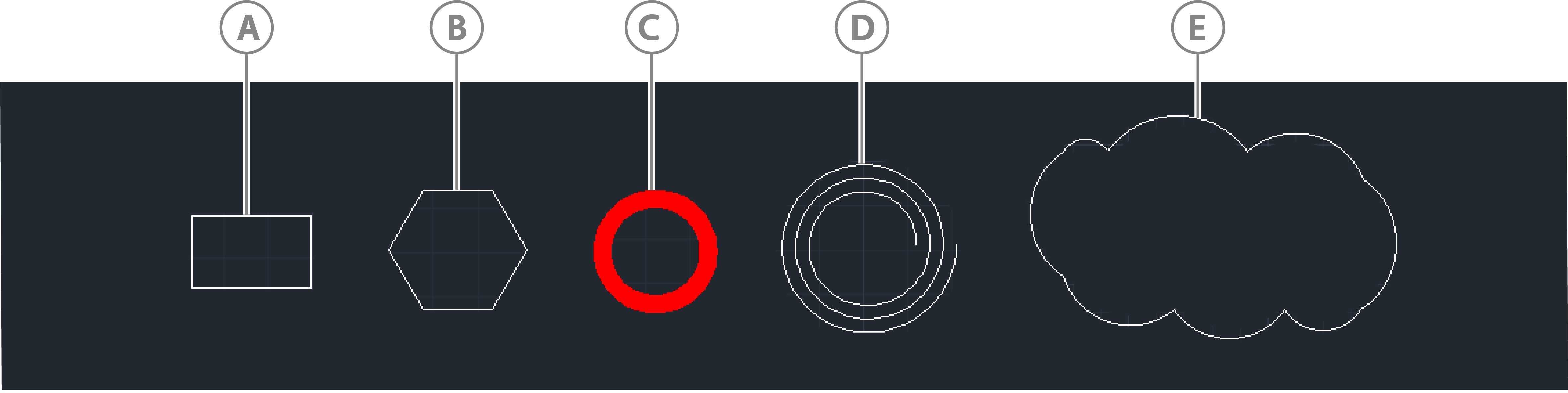
| Callout | Description |
|---|---|
| A | Rectangle |
| B | Polygon |
| C | Donut |
| D | Helix |
| E | Rectangular RevCloud |
Fundamental Curves
If you export curves such as lines, arcs, polylines, circles, ellipses, and splines, consider the following transformations:
- Non-linear curves tessellate to line segments before they are exported.
- Curve colors are exported.
- For polylines, if the global width is set to a non-zero value, export it as a polyline with thickness.
- Line styles are not supported. For example, a dashed line exports with a solid line style.
Figure: Polyline width
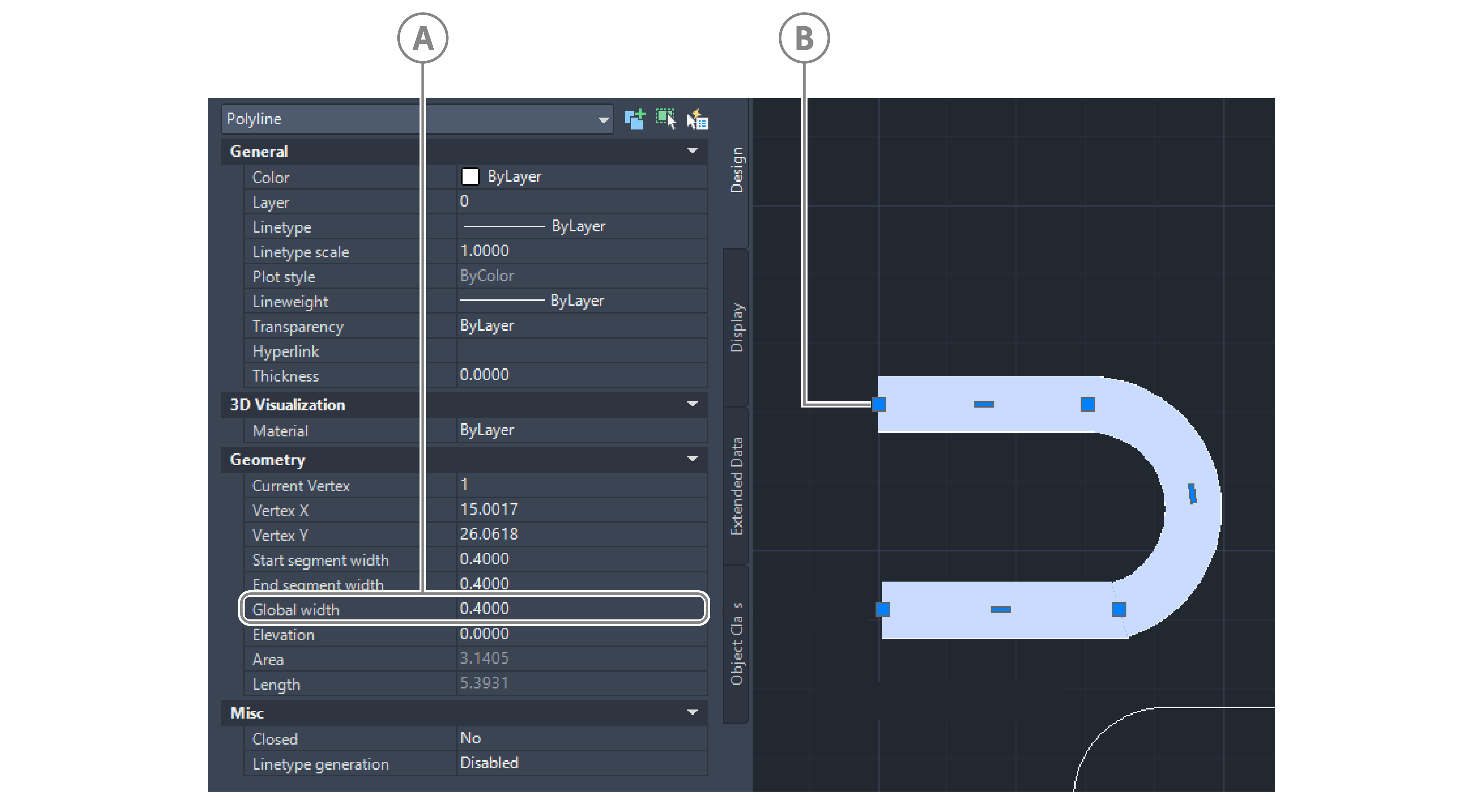
| Callout | Description |
|---|---|
| A | Global width value |
| B | Polyline with width |
DBText and MText
If you export text data, due to the different ways that AutoCAD and HOOPs define text data, consider the following points:
-
Font type, size, and text position may output differently
-
Fonts from a Windows fonts folder, such as Times New Roman, export as expected, otherwise text exports as a default Arial font.
-
Underlined text is not supported
-
Some special characters used by AutoCAD to express symbols are supported:
Special character Symbol %%C ∅ %%P ± %%D °
Figure: AutoCAD and HOOPs text
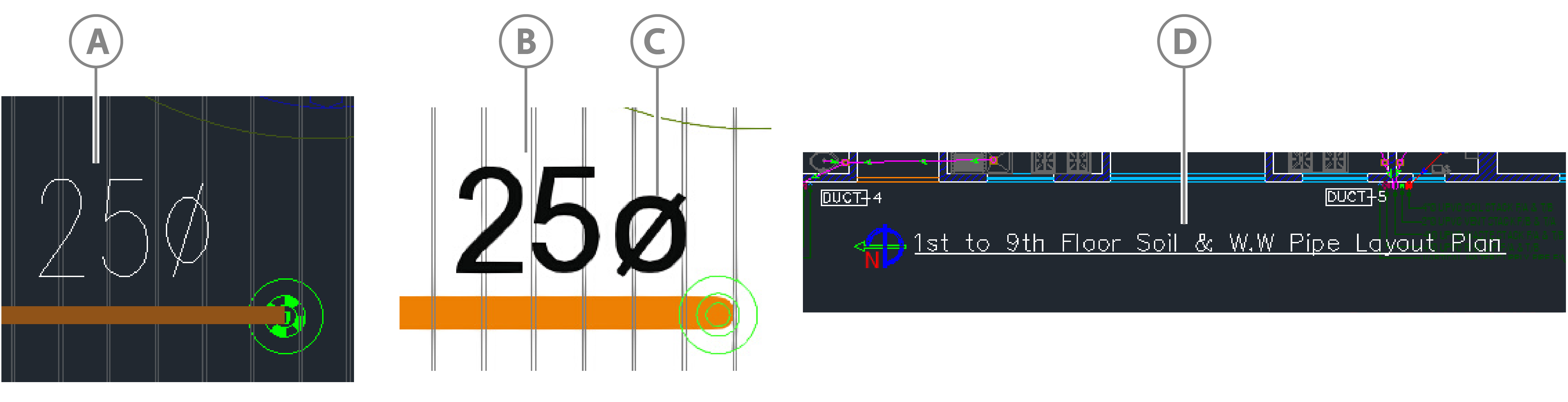
| Callout | Description |
|---|---|
| A | AutoCAD text |
| B | HOOPs text |
| C | Special character |
| D | Underlined text in AutoCAD that is not supported. |
Region
Export the region's boundary, which could be polylines, lines, circular arcs, circles, elliptical arcs, ellipses, or splines. Regions with a hole are supported.
Solid (2D)
Export solid-filled shapes as mesh geometry. In AutoCAD, 2D Solid is a solid-filled triangle or quadrilateral.
Figure: Solid-filled quadrilateral

Hatch
- Solid-filled hatches export as mesh geometry
- Line-filled hatches export as line geometry
- Hatches with holes are supported
Figure: Hatches
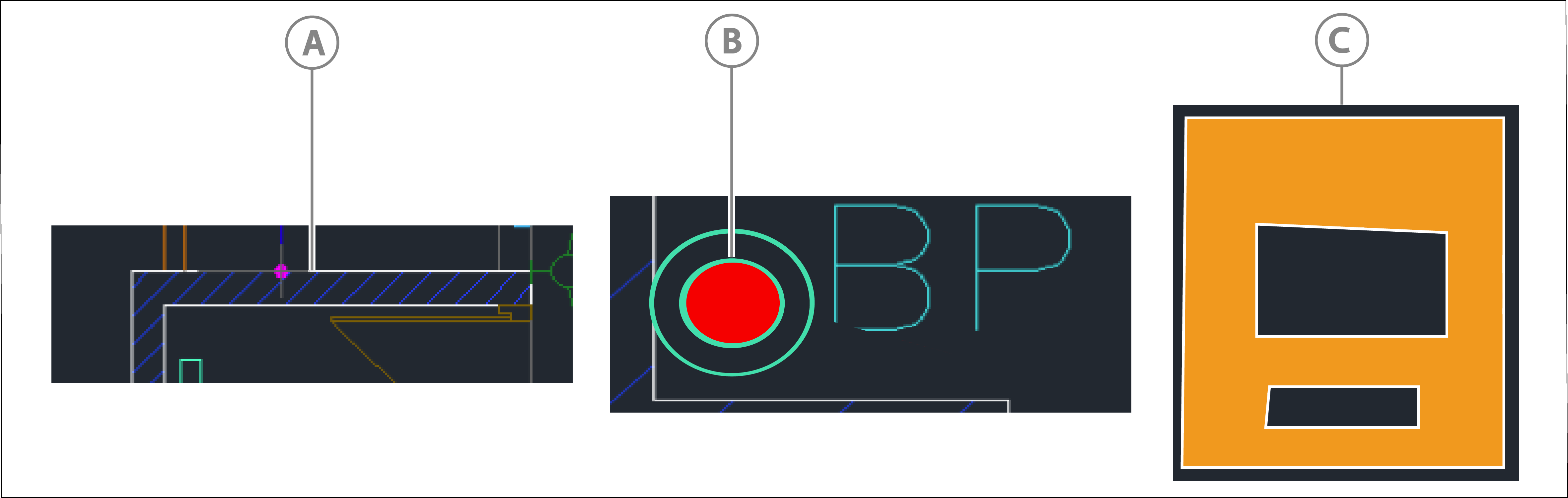
| Callout | Description |
|---|---|
| A | Line-filled hatch |
| B | Solid-filled hatch |
| C | Hatch with holes |
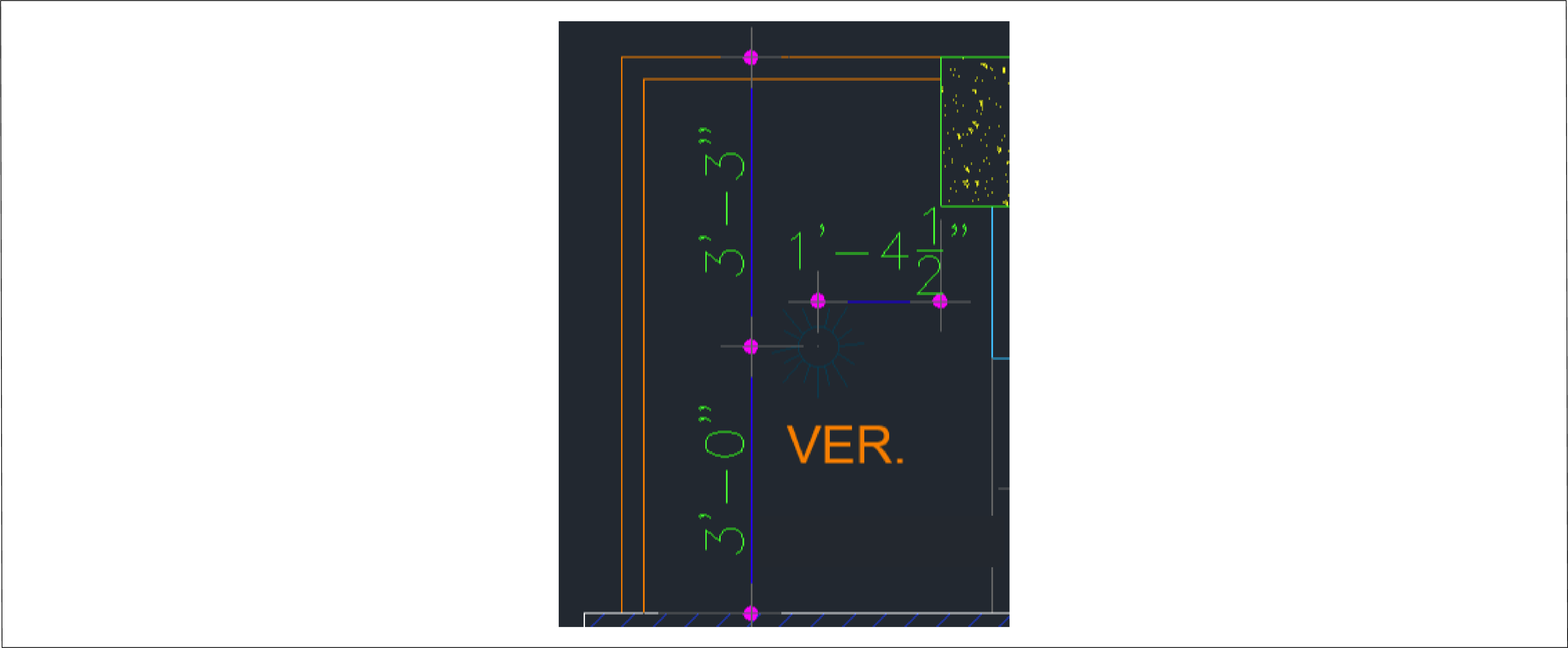
Dimension
Exports text, lines, and arrowheads that represent dimensions as expected.
Figure: Dimensions
Leader and MLeader
Exports Leader arrowheads, lines, and horizontal landings.
Figure: Leader
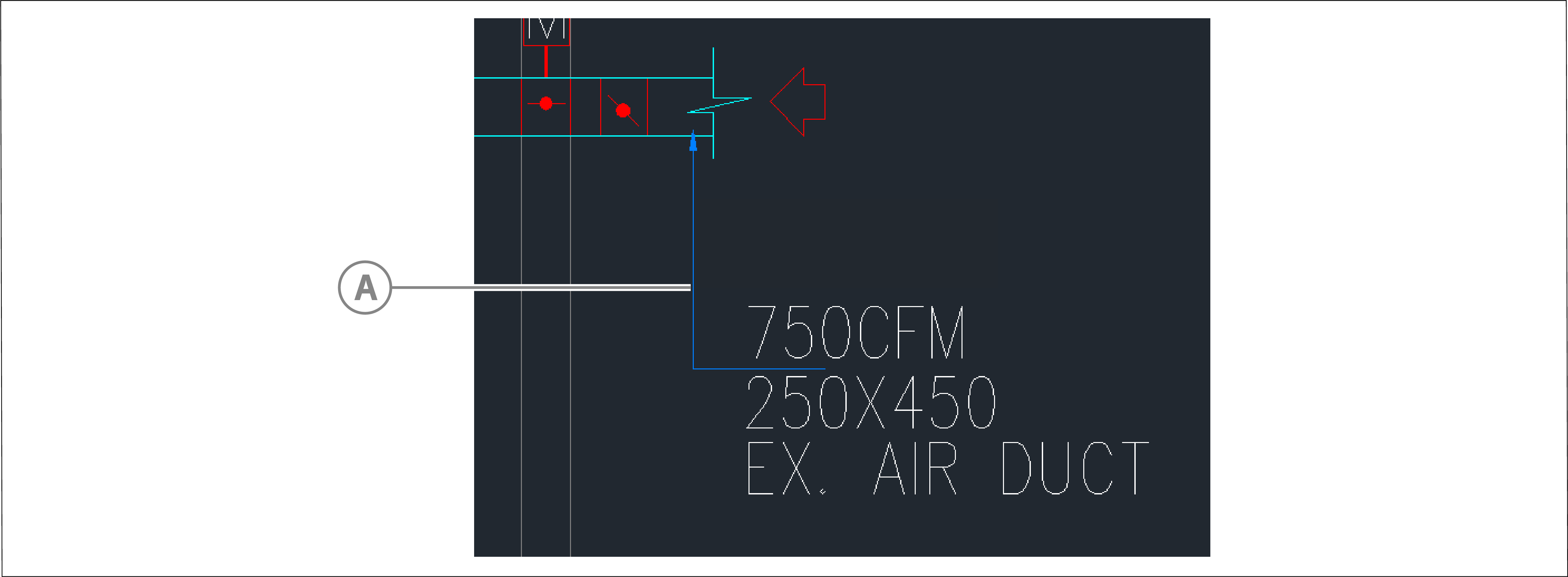
| Callout | Description |
|---|---|
| A | Leader |
Block Reference
Exports all objects inside a block. In HOOPs, an entire BlockReference is a selectable element.
Figure: Block reference
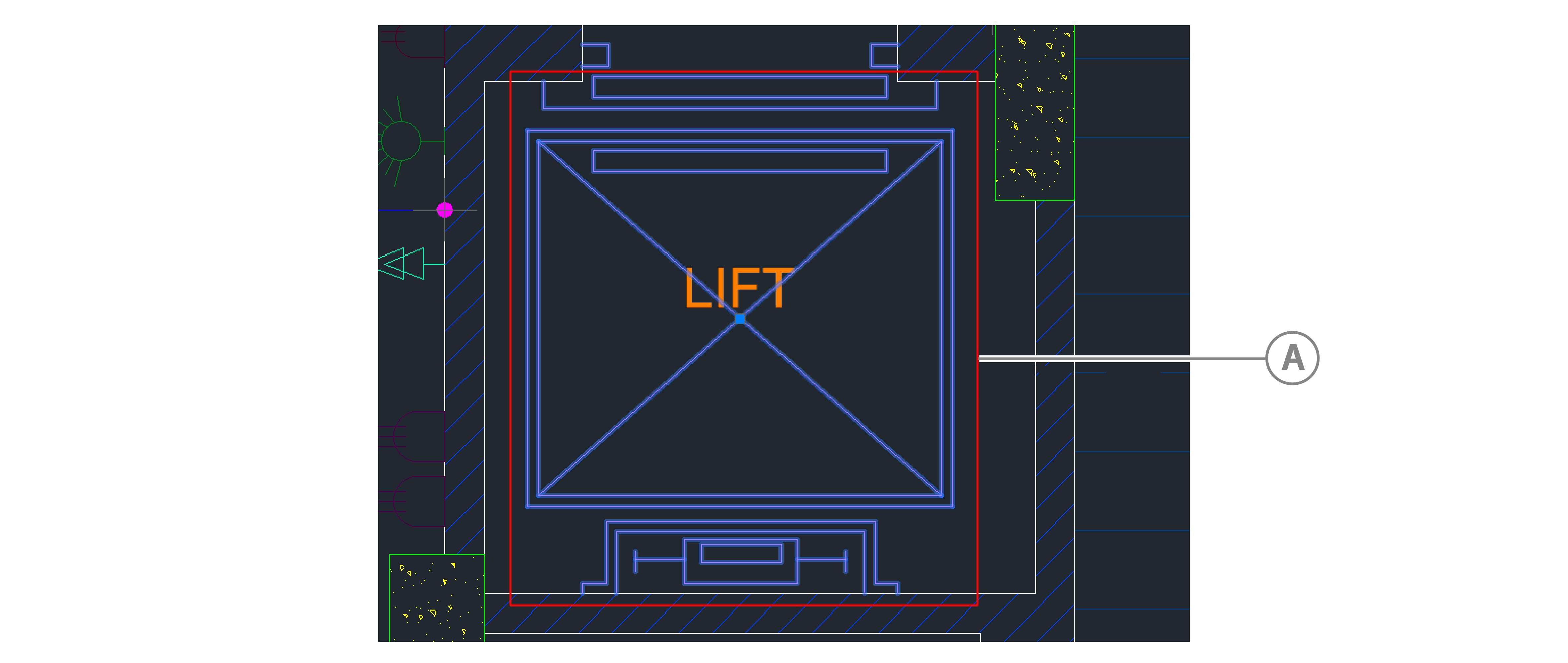
| Callout | Description |
|---|---|
| A | Block |
XRef drawing
When XRef is also AutoCAD 2D drawing, export entities in XRef. If the XRef drawing is an image, it will not export.
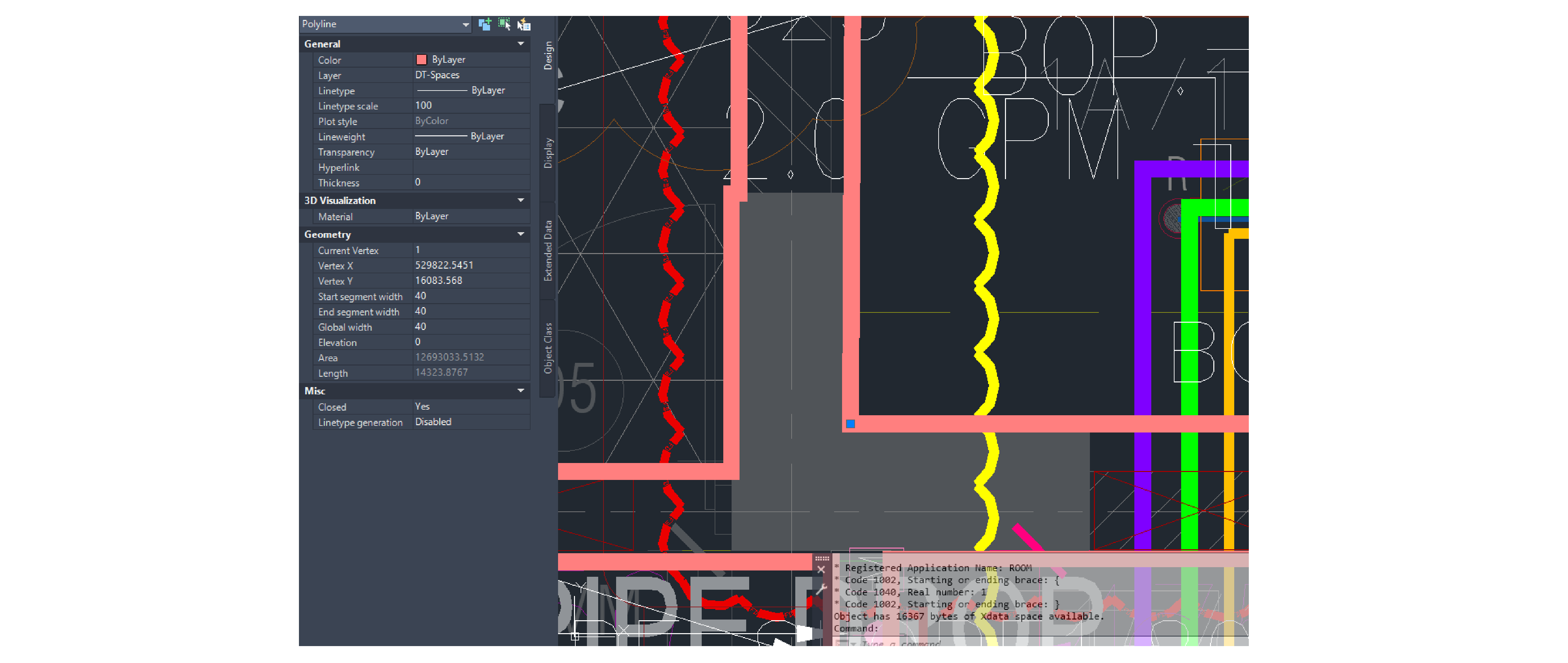
Room/Space
A Room or Space is an Architectural model and not a built-in AutoCAD entity. As a result, it requires special definition and modeling.
Figure: Room/space in AutoCAD
Room definition and modeling
A model designer must add Space or Room data to a polyline before exporting the model. If a Polyline has Room or Space data and a room number in its XData, it is considered a Room or Space object, and you can export it as one.
To model a polyline as a space or room, complete the following:
- In the polyline's xData, define an application named
ROOM. - In the application data, enter a room number.
- Set the global width to 40 so that it is easier to view and select.
Result: In bimpk/objects.json file, the polyline exports as a Room object with a Room_Number property.
Asset definition and modeling
Figure: Asset in AutoCAD
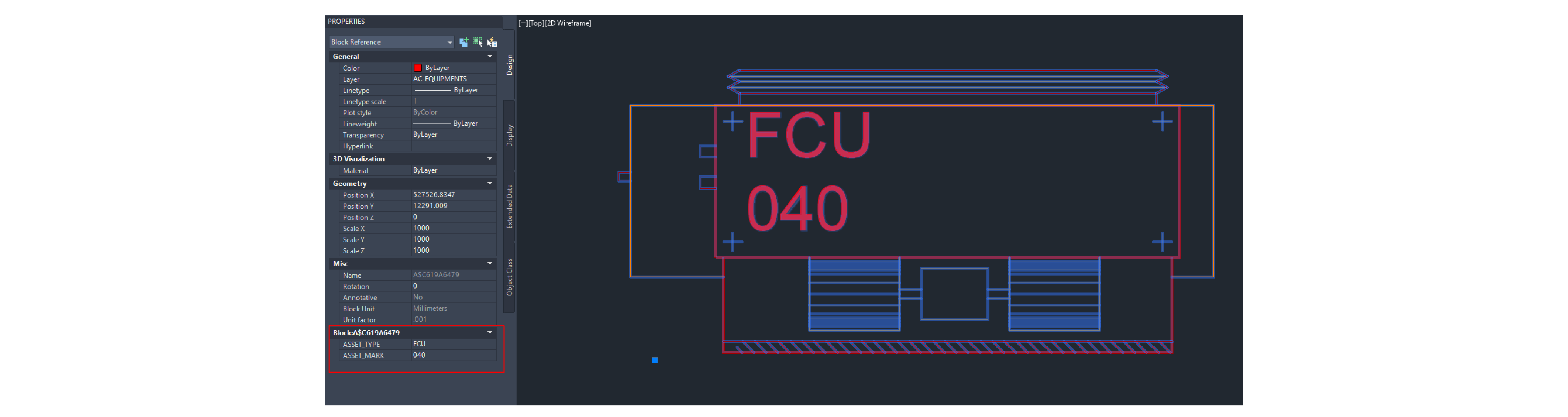
A model designer must add Asset data to a BlockReference before exporting the model by completing the following steps:
- Go to the BlockReference's properties.
- Add an additional attribute,
ASSET_TYPE, and enter a value. - Add an additional attribute,
ASSET_MASK, and enter a value. - Export the asset object.
Result: In the bimpk/object.json file, the asset object exports for this BlockReference with ASSET_TYPE and ASSET_MASK properties.